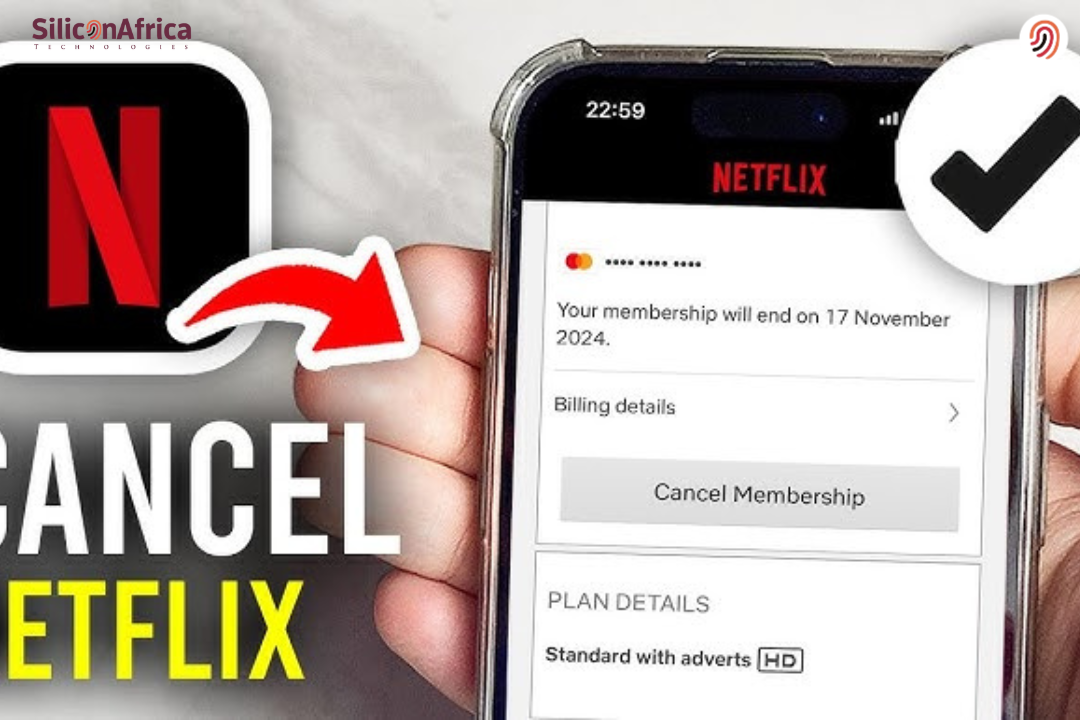
If you’re looking for how to unsubscribe from Netflix, you’re not alone. Maybe you’re cutting down on expenses. Maybe you’re just not watching as much anymore.
Whatever the reason, it’s simple. Log in to your Netflix account, go to your account settings, click on Cancel Membership, and confirm. That’s how to unsubscribe from Netflix account without stress.
Here in this guide, I will show you how to fully unsubscribe from Netflix payment so that you will not be charged anymore.
You will also know how to unsubscribe from Netflix subscription on the device you are using. Let’s do it step-by-step so that you can do it in minutes.
Why Unsubscribe From Netflix?
Despite its many benefits, there will be some months when you won’t get to use your Netflix subscription. It can save you money and allow you to experiment with other channels if you drop it. Here’s why you should cancel your Netflix subscription:
- Costs: Netflix is not the cheapest streaming service, and the website’s new plans are so that users pay a substantial amount for an ad-free experience. If you are on a tight budget, dropping might be an option.
- Preferences: There’s plenty of stuff on Netflix, but if you’ve used up the things that are interesting to you, cancelling is a choice since you can go to other streaming websites.
- Limited Time: There aren’t enough hours in the day, and you might find that you’re not watching Netflix long enough for it to be worth the money. Pausing or cancelling membership might be a good idea.
- Subscription Overload: As more and more streaming services are coming into the market, you might feel overwhelmed with a number of subscriptions. Cutting down by ending one or two subscriptions will make your entertainment management simpler.
- Taking a Break: You just need to take a break from the screen at times. Ending Netflix can make you do other things and reduce screen time.
Read Also –Netflix Subscription Prices Jump 83%, Premium Now Costs 7,000 Naira
Things to Know Before Unsubscribing Your Netflix Subscription
Before you can unsubscribe your Netflix membership, there are some things that you should be aware of first so that you will not regret it later.
- If you just want to have a time-out, you can freeze your Netflix membership but not cancel it. Unfortunately, you cannot do this if you have subscribed to the Basic Plan.
- Unsubscribing is not instant deactivation. Your subscription keeps running until your current billing cycle has ended.
- Netflix retains your information for 10 months after Unsubscribing. This comprises your viewing history, titles on your My List, ratings and recommendations, and profiles. So, if you return within this period, you can pick up where you’d left off.
- You will no longer be able to view the downloaded content once your Netflix subscription period comes to an end.
- If you enrolled through the App Store, Google Play, Amazon, or a carrier like T-Mobile or Verizon, cancelation must be performed through that specific provider. Cancelation through Netflix’s website will not work in such cases.
- In case automatic payment is disabled, you don’t need to cancel your subscription yourself; you can simply avoid making more payments.
- If your current plan price is important to you, you can lower it instead of canceling it.
Also Read – Netflix Increases Subscription Prices in Nigeria
How to Unsubscribe from Netflix
Unsubscribing from Netflix depends on the device you’re on. All are straightforward and give you back control of your subscription. Let’s take a look at how to do so:
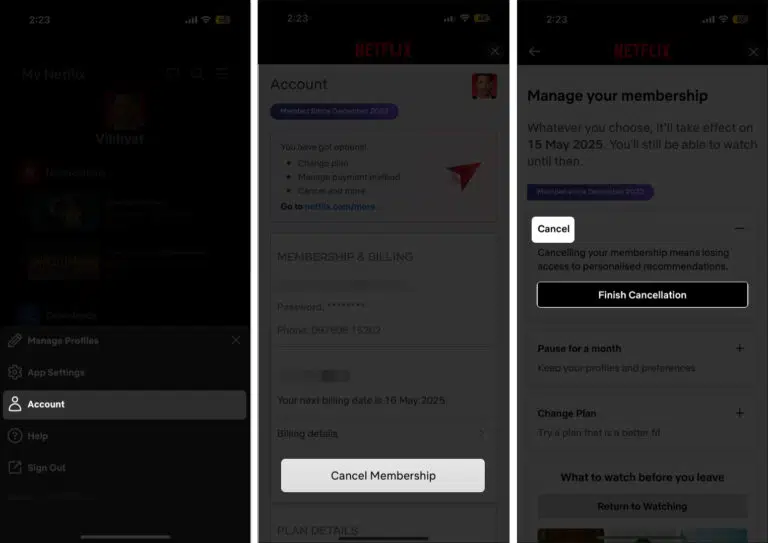
How to Unsubscribe from Netflix Using the Netflix Mobile App
It is almost the same process for canceling a Netflix membership in both Android and iPhone apps. Therefore, we used the iPhone app for the sake of providing you with the steps:
Open the Netflix app and select your profile.
Press your profile picture at the bottom-right, then press the hamburger icon (three horizontal parallel lines) at the top-right.
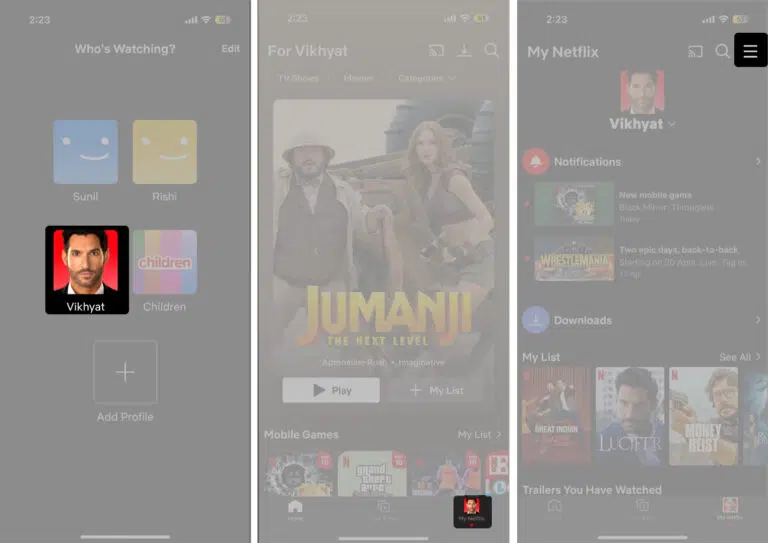
Go ahead and select Account in the menu that appears.
Press the Cancel Membership here.
Choose the Cancel option and, in turn, click the Finish Cancellation button that appears.
How to Unsubscribe from Netflix Using the Web.
Note that you are unable to unsubscribe from Netflix subscription through its TV app. So, you will have to use Netflix’s official website via your favorite web browser to do so. How to do it:
Open Netflix’s website in your favorite web browser and log in to your Netflix account.
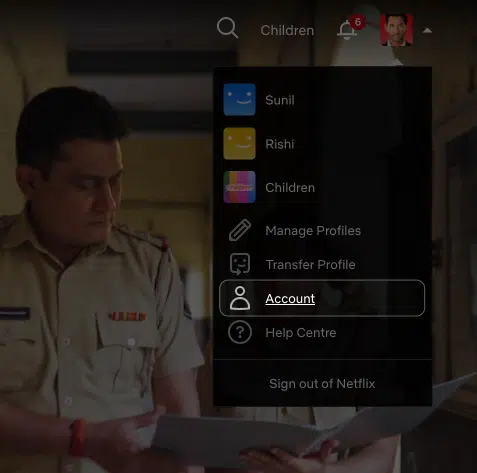
Move your cursor over the profile picture in the top right-hand corner.
Next, select the Account option from the drop-down menu that appears.
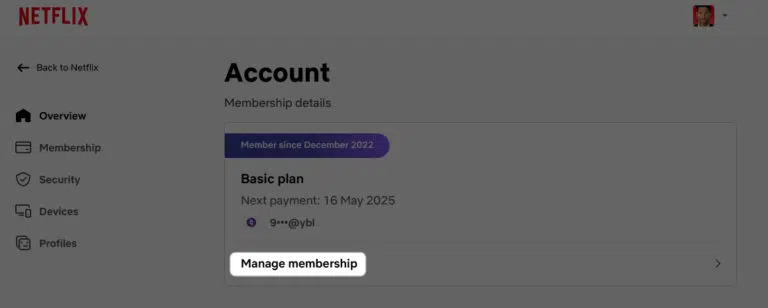
Scroll down and select Manage Membership.
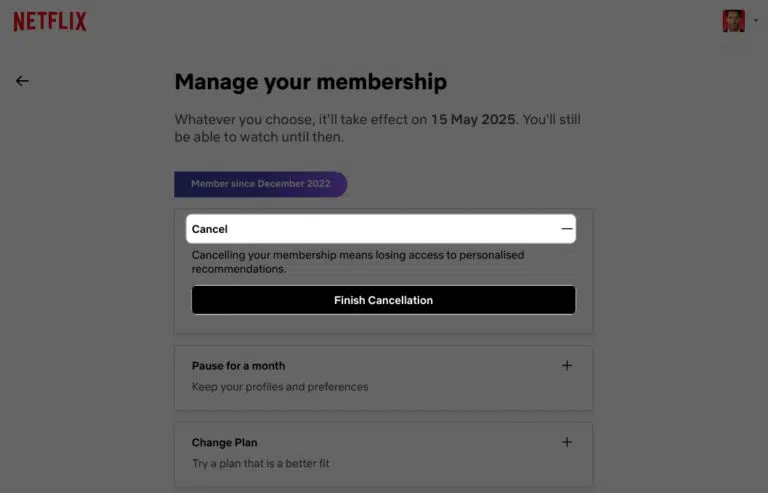
Click the Cancel Membership button in the ensuing menu.
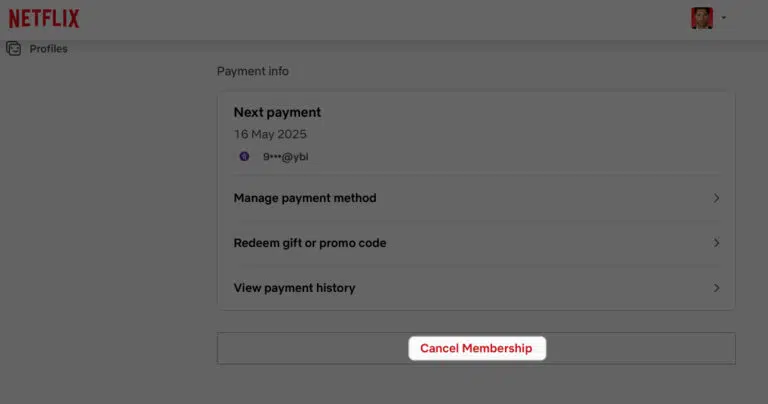
Lastly, select the Cancel option, then click the Finish Cancellation button that appears.
Read Also – How to Make your Netflix Account Private in 2024
How to Unsubscribe Netflix on iPhone or iPad
If you subscribed to Netflix from the App Store using your Apple ID, your billing is actually handled by Apple, not by Netflix. That’s why you won’t have a “Cancel” option inside the Netflix app—you’ll need to cancel through the Settings app on your device instead.
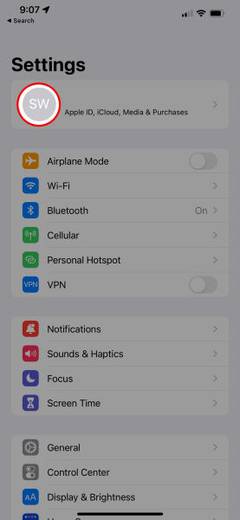
Go into the Settings app and tap on your name at the top.
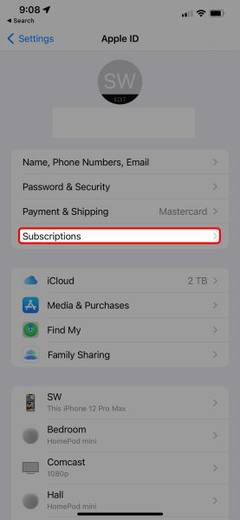
Select Subscriptions from the Apple ID menu.
Now, select Netflix from the active subscriptions.
Tap Cancel Subscription and acknowledge your action.
How to Unsubscribe Netflix subscription using the Google Play app on your Android phone or tablet
If you started your Netflix subscription on an Android tablet, chances are that it is tied to your Google account. If this is the case, you can cancel the account on your phone using the following steps:
Open the Google Play Store application on your phone or tablet.
Tap your profile picture in the top right. The profile picture shows you the photo you have set for the account or your initials.
When the menu is open for your profile, tap Payments & Subscriptions.
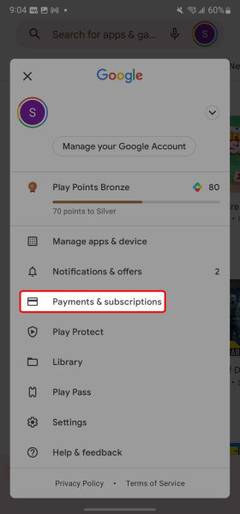
Tap Subscriptions.
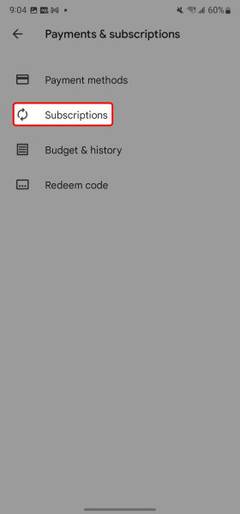
Tap Netflix and tap Cancel Subscription.
Confirm your cancellation.
Also Read – How to Fix “I Can’t Login My Netflix Account” Problem in Nigeria
How to Unsubscribe Netflix subscription via Google Play on your browser
If you registered for your Netflix account via Google Play, the process of unsubscription must go through Google Play.
Go to the website of Google Play and log in.
Click on your profile picture in the top right corner of the page.
Click on Payments & subscriptions.
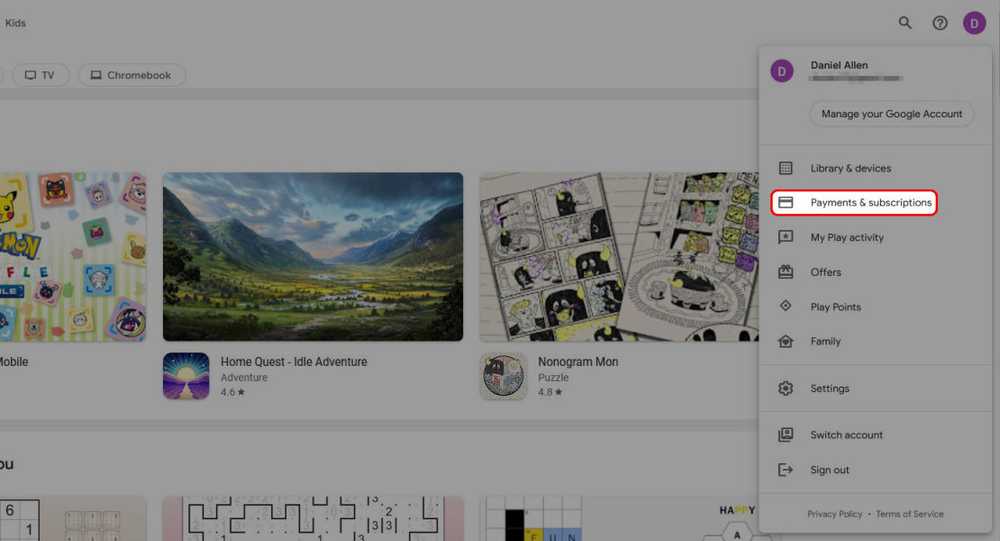
Click on the Subscriptions tab in your account to initiate the process of unsubscription.
What Happens After You Unsubscribe From Netflix?
Closing your Netflix account does not necessarily deprive you of access, and a majority of users are still free to watch movies and TV shows until the account is turned off. Here’s what you can expect:
- No Charges: As long as you request cancellation confirmation, you will not be charged after the expiration of your existing billing period.
- Reactivating Your Account: If you get cold feet, Netflix simplifies the reactivation of your account. Simply log in and resubscribe to the service. You’ll be able to select a subscription plan and input a new billing cycle.
- Account Details: Netflix keeps your account details, profiles and watch lists, for ten months after you have canceled. Your data will be erased totally if you fail to re-activate your account within ten months.
Also Read – Meta Denies Sharing Users’ Data with Netflix
How Long Can You Use Netflix After Unsubscribing?
Now that you’ve formally informed Netflix that you’d like to cancel your account, you probably won’t be locked out immediately. Even though you canceled your subscription (no more monthly charge), you’re still allowed to use everything through the end of your current billing cycle.
You can check when that is by checking your account’s billing details.
On a desktop or mobile, tap Account in the menu for the profile icon. This will show you when your current billing cycle ends.
Look under your payment details to view your next billing date.
Frequently Asked Questions
Netflix does not usually offer partial-month refunds. Your account will
Yes, you can cancel at any time. We don’t have contracts or cancellation fees.
When you cancel, Netflix retains your profile information, your taste, and viewing history for around 10 months. If you return during this period, your account will be where you left off.
You won’t be charged after your billing period is over once you’ve canceled. You may be charged one more time if you cancel just before your renewal date, since your system may already have charged the renewal.
Yes, when you cancel Netflix, you’ll still be able to use it until the end of your current billing cycle. Cancellation only prevents auto-renewal for the subsequent cycle.
Conclusion
You now know how to unsubscribe from Netflix—log in, go to Account, and click Cancel Membership. That’s all it takes to end your subscription.
Whether you’re searching for how to unsubscribe from Netflix account, how to unsubscribe from Netflix payment, or how to unsubscribe from Netflix subscription, the process is quick and easy.
Take control of your membership when it suits you.
If you find this piece useful, kindly leave a comment and follow for more updates
Facebook at Silicon Africa
Instagram at Siliconafricatech
Twitter at @siliconafritech.