Seeing “Private Number,” “No Caller ID,” or “Unknown” instead of a phone number on your iPhone display can damage your credibility, lower answer rates, and hinder both personal and professional communication. If you’re calling clients, friends, or family, presenting your real phone number builds trust and reduces the likelihood of your call being dismissed as spam.
Fortunately, iOS and most carriers provide straightforward ways to ensure your number is visible on outgoing calls.
In this full guide, you’ll learn how to Remove Private Number on iPhone across different iPhone models—starting with the universal methods, then diving into device-specific tips for the iPhone X, iPhone 15 Pro Max, and the upcoming iPhone 16.
How to Remove Private Number on iPhone
- Toggle “Show My Caller ID” in Settings
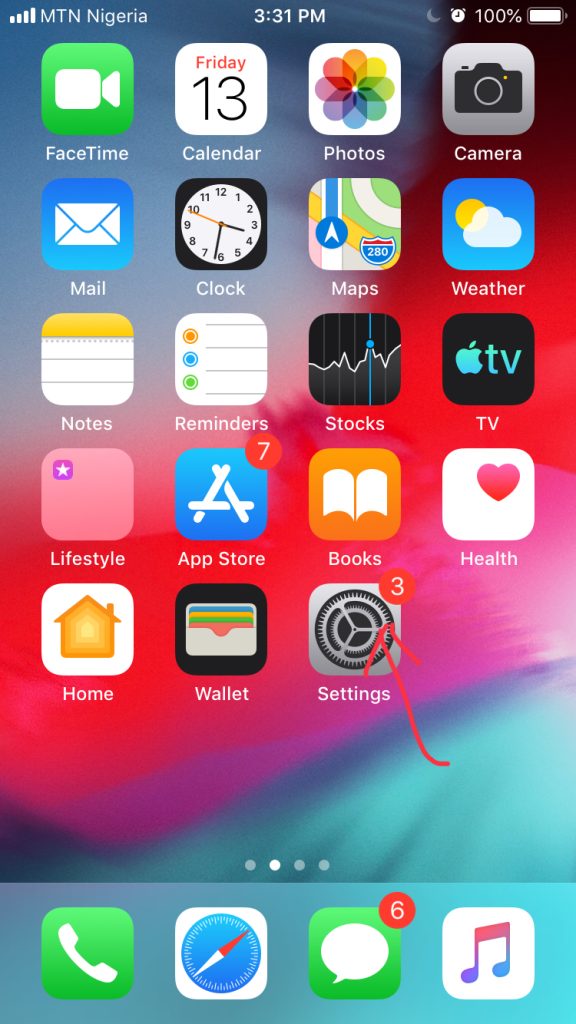
Open Settings.
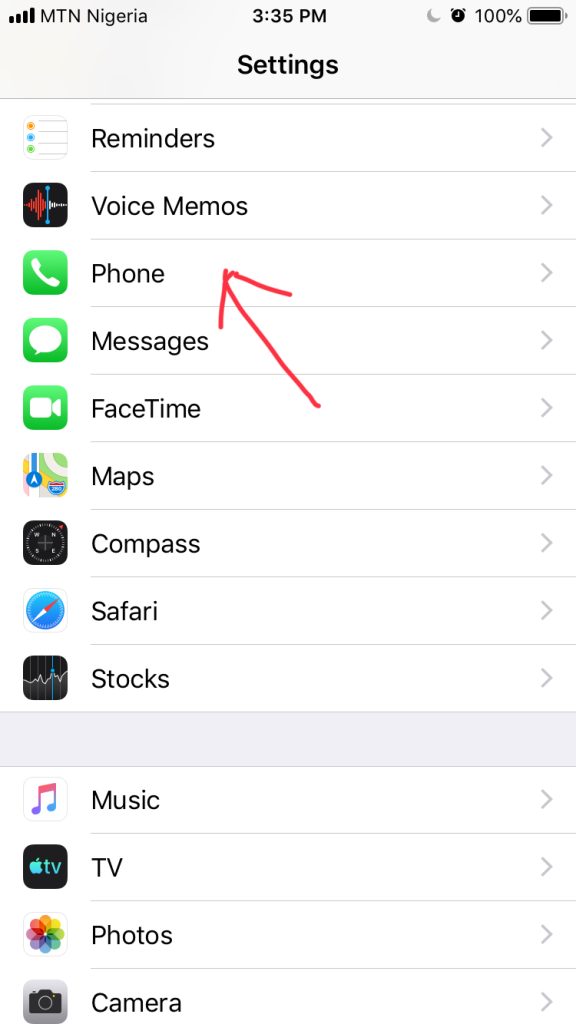
Tap Phone.
Scroll to Show My Caller ID.
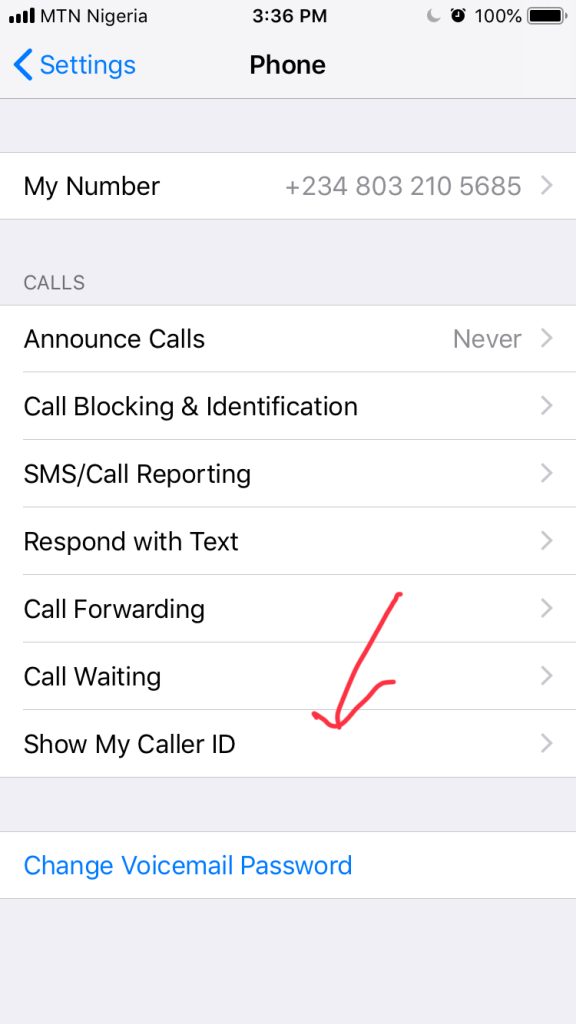
Toggle it on. When enabled, your number appears on your recipient’s caller ID display.
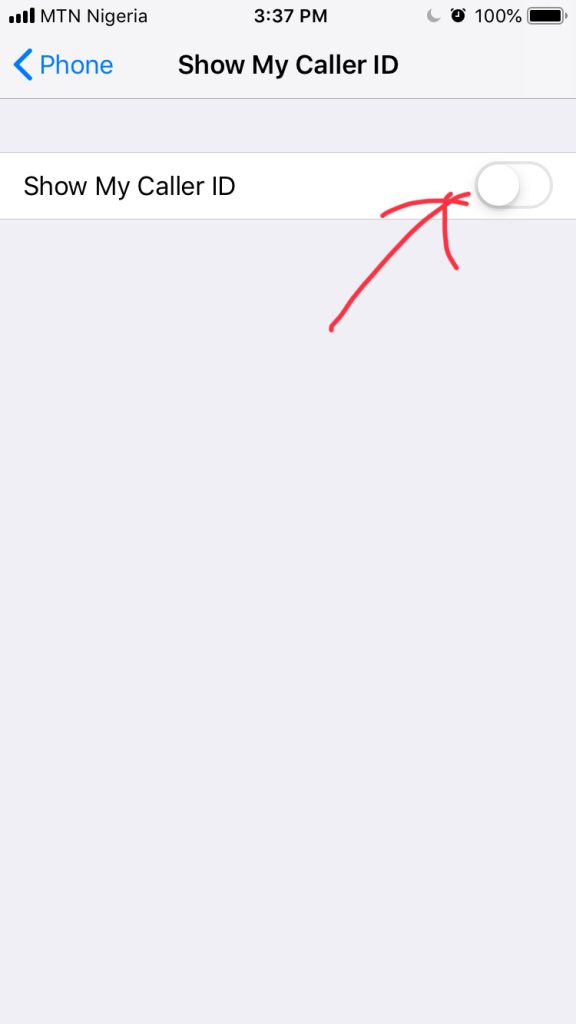
If you don’t see this option, your carrier may have disabled it. In that case, proceed to the carrier code methods below or contact your network provider.
- Use Network Prefix Codes
Depending on your region, you can temporarily or permanently override caller ID blocking by dialing a prefix before the number:
- United States & Canada (*82): Dial *82, wait for the dial tone, then enter the full number (including area code). This lifts any per-call blocking and reveals your caller ID.
- Europe & Many Other Countries (#31#): Dial #31# followed immediately by the number you wish to call. This unblocks caller ID on a per-call basis.
- Global Temporary Blocking (*67 / *31#): Conversely, if you ever need to hide your number again, dialing *67 (North America) or #31# (Europe/others) before the recipient’s number will mask your caller ID for that single call.
- Contact Your Carrier
Some networks—especially corporate or enterprise plans—override device-level caller ID settings. If the Show My Caller ID toggle is missing or greyed out:
- Call your carrier’s customer care or visit their support portal.
- Request permanent enabling of outbound caller ID on your line.
- After they confirm the change, restart your iPhone to apply updated provisioning.
- Verify the Change
- Make a test call to a friend or a secondary line.
- Ask them to confirm that your phone number (not “Private Number”) appears on their device.
How to remove private number on iPhone X
Although the iPhone X introduced a fullscreen notch and gesture-based navigation, the steps to display your caller ID remain identical:
- Open Settings
Swipe down from the top-right corner to open Control Center momentarily, then tap the Settings gear icon.
- Navigate to Phone
Scroll down the Settings list and tap Phone.
- Enable Show My Caller ID
Find Show My Caller ID and ensure the switch is green. If it’s off, toggle it on.
- Use *82 or #31# When Necessary
- For U.S./Canada calls, dial *82 before the number.
- For European/other regional calls, use #31#.
- Carrier Lock-Ins
If the option remains unavailable, contact your carrier as outlined above. On the iPhone X, the only difference is how you access Settings via gestures—otherwise, the process matches all other models.
How to remove private number on iPhone 15 Pro Max
The iPhone 15 Pro Max, running iOS 17 or later, features Dynamic Island and updated Settings layout, but the “Show My Caller ID” path remains consistent:
- Launch Settings
Tap the Settings icon on your Home screen or use the App Library.
- Tap Phone
In the Settings list, select Phone (wheel icon).
- Activate Caller ID
Toggle Show My Caller ID to the on position. You should see the switch turn green.
- Alternate Prefix Method
Anytime you need to override per-call blocking, dial *82 (North America) or #31# (other regions) before the target number.
- Restart if Needed
After any carrier changes, power down your iPhone 15 Pro Max and restart to ensure settings propagate.
The iPhone 15 Pro Max maintains full support for all standard vertical service codes, so toggling via Settings or prefix dialing works exactly as it does on prior models.
How to remove private number on iPhone 16
While the iPhone 16 has not yet been released as of June 9, 2025, Apple traditionally keeps core telephony settings unchanged. Anticipate the same workflow:
- Settings → Phone → Show My Caller ID
Enabling this toggle will display your number on outgoing calls.
- Use Carrier Prefixes
- *82 for U.S./Canada unblocking.
- #31# for Europe/other regions.
- Carrier Provisioning
If the toggle is unavailable, your carrier must enable caller ID on your line. Expect to contact their support for assistance.
- Testing
Place a test call after making changes and confirm the recipient sees your actual number.
Since Apple’s telephony settings have remained remarkably stable across iOS versions—from iOS 12 through iOS 18—you can confidently apply these same steps on the forthcoming iPhone 16 when it arrives.
FAQs
Settings > Phone > Call Blocking & Identification > Show My Caller ID and toggling the switch on
Enable the “Show My Caller ID” setting
may be due to network settings or the caller choosing to block their ID
Conclusion
Removing the “Private Number” label and ensuring your caller ID displays correctly on your iPhone takes just a few taps or a quick prefix dial. Whether you’re on an iPhone X, the latest 15 Pro Max, or a future iPhone 16, the essential methods remain the same.
By following these steps, you’ll boost answer rates, strengthen professional relationships, and avoid the stigma of hidden numbers. With just a toggle, a prefix, or a quick call to support, you’ll permanently remove the private number barrier on your iPhone.
References
- support.apple.com/iphone/
- legit.ng/how to remove private number in iphone
- calilio.com/how to remove my number from private number