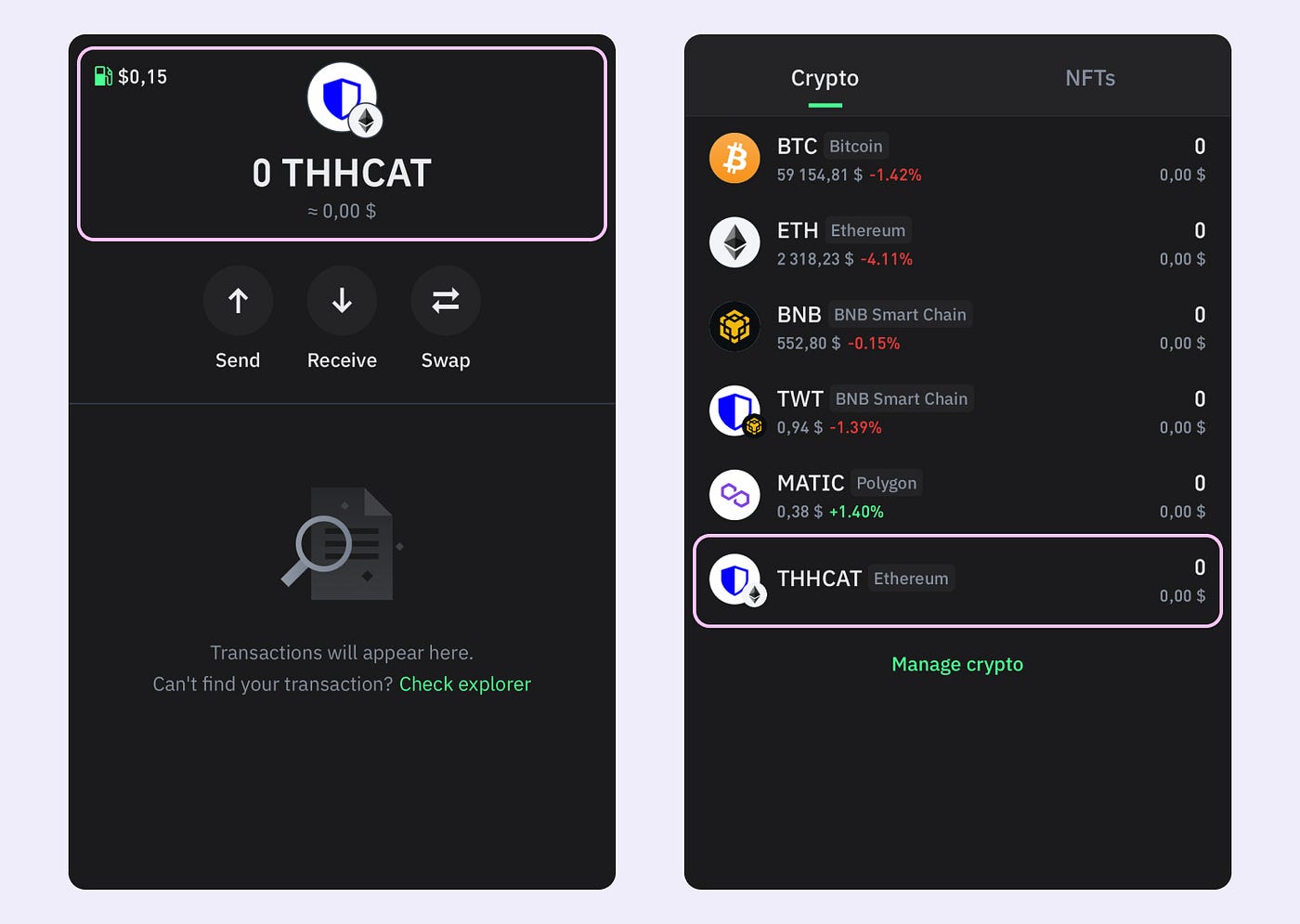
Managing your cryptocurrency assets is as important as buying them, and one of the trusted apps many cryptocurrency traders use is the Trust Wallet app. Trust Wallet is a mobile app that lets you store many different cryptocurrencies and use decentralised apps (DApps).
But when do you need to learn how to import token on Trust Wallet? It is for when a token doesn’t show up in your wallet.
This easy guide will show you step by step how to add any custom token, including BEP20 tokens, and how to swap or convert them. It doesn’t matter if you’re a newbie or already have some experience; this article will help you use Trust Wallet better.
How to Import Token on Trust Wallet
If your wallet doesn’t show a token you know you have, don’t worry, you might just need to add it manually.
Open Trust Wallet
Make sure you’ve downloaded the official Trust Wallet app from the Google Play Store or Apple App Store. Open the app.
Go to Token Search
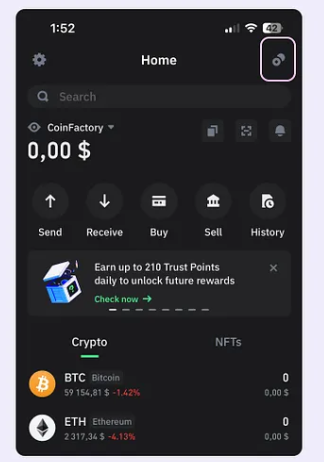
On the main screen of your wallet, tap the icon at the top right corner to look for tokens.
Look for Your Token
Type the name or short symbol of the token (like USDT or BNB). If you see it in the list, switch it ON to show it in your wallet.
Add a Token Manually (if not listed)

If the token isn’t listed:
- Tap “Add Custom Token”
Pick the correct Network like Ethereum

- Paste the token’s Contract Address
- Enter the token’s Name, Symbol, and Decimals (this is usually 18)
- Tap Save
Read this: Binance CEO Encourages Cryptocurrency Enthusiasts to Move Beyond Hodling and Flipping Tokens
Why Won’t my Token Show Up Automatically?
Your token didn’t show up automatically in Trust Wallet because the app only shows popular tokens by default. If your token isn’t on that list, you’ll need to add it yourself by typing in the contract address, symbol, and number of decimals. This helps make sure that only tokens you trust or want to use are shown in your wallet.
How do I Convert Tokens to Trust Wallet?
There are two main ways to get tokens into your Trust Wallet:
Send Tokens from a Crypto Exchange
- Open your Trust Wallet and copy the wallet address for the token you want to receive.
- Go to your exchange account (like Binance or KuCoin).
- Choose the token you want to send.
- Paste your Trust Wallet address and withdraw the token.
After a short time, the token will show up in your Trust Wallet.
Swap Tokens Inside Trust Wallet
You can also change one token into another directly in your wallet.
- Open the DApp Browser inside Trust Wallet.
- Go to PancakeSwap or Uniswap, depending on your token’s network.
- Choose the token you have and the one you want to get.
- Confirm the swap and pay a small network fee.
How to Add BEP20 Token to Trust Wallet
Adding a BEP20 token (used on the Binance Smart Chain) is very similar to adding any other custom token.
Easy Steps:
- Open your Trust Wallet app
- Tap the search button in the top right corner
- Tap “Add Custom Token” at the bottom
- Change the Network to Smart Chain
- Paste the token’s BEP20 contract address
- The wallet will fill in the rest of the details automatically
- Tap “Save” to finish
Also, read: 15 Best Sites to Buy Bitcoin in Nigeria: Best Crypto Sites
How to Swap Custom Token in Trust Wallet
After you import a custom token, you might want to exchange it for another one, like BNB or USDC.
Here’s how to do it:
- Open the DApp Browser
Use the built-in browser in Trust Wallet (it’s already available on Android. If you’re using iPhone, you may need to turn it on first).
- Visit a DEX (Decentralized Exchange)
Go to PancakeSwap if your token is on the Binance Smart Chain (BEP20), or Uniswap if it’s on Ethereum (ERC20).
- Connect Your Wallet
Tap “Connect Wallet” on the DEX website and choose Trust Wallet from the list.
- Choose the Tokens to Swap
In the “From” section, pick the token you want to swap.
In the “To” section, select the token you want to get.
- Confirm and Pay
Review the details, approve the swap, and pay the network fee (you’ll need some BNB or ETH to cover this).
Related Article: 30 Crypto Terms You Should Know
Frequently Asked Questions
Yes. Using incorrect or scam contract addresses can lead to loss or display of fake tokens. Always verify from trusted sites.
It could be due to:
1. Wrong network selected
2. Delay in transaction confirmation
3. Token hasn’t been sent yet
4. App needs refreshing
Send them to your wallet from an exchange or swap tokens inside the wallet using a DEX.
Yes, but only if the token is supported by a DEX and has enough liquidity. Otherwise, you may need to use a centralized exchange.
Conclusion
Now you understand how to add a token to Trust Wallet and manage different types of tokens, like ERC20 and BEP20. With just a few steps, you can see your tokens, send them, trade them, or even earn rewards by staking.
Always check the token details carefully, especially the contract address and network, before adding it to your wallet. This helps you avoid mistakes or losing your tokens.
If you found this article useful, we’d love to hear from you! Drop your thoughts in the comments below. And don’t forget to connect with us on our social media channels for more tech tips and valuable content. Join our community and stay updated on all the latest insights!
- Twitter: @siliconafritech
- Facebook: Silicon Africa
- Instagram: @siliconafricatech
References
- Medium.com – How to Import a Token in Trust Wallet
- Support.trustwallet.com – How to Add a Custom Token to Trust Wallet