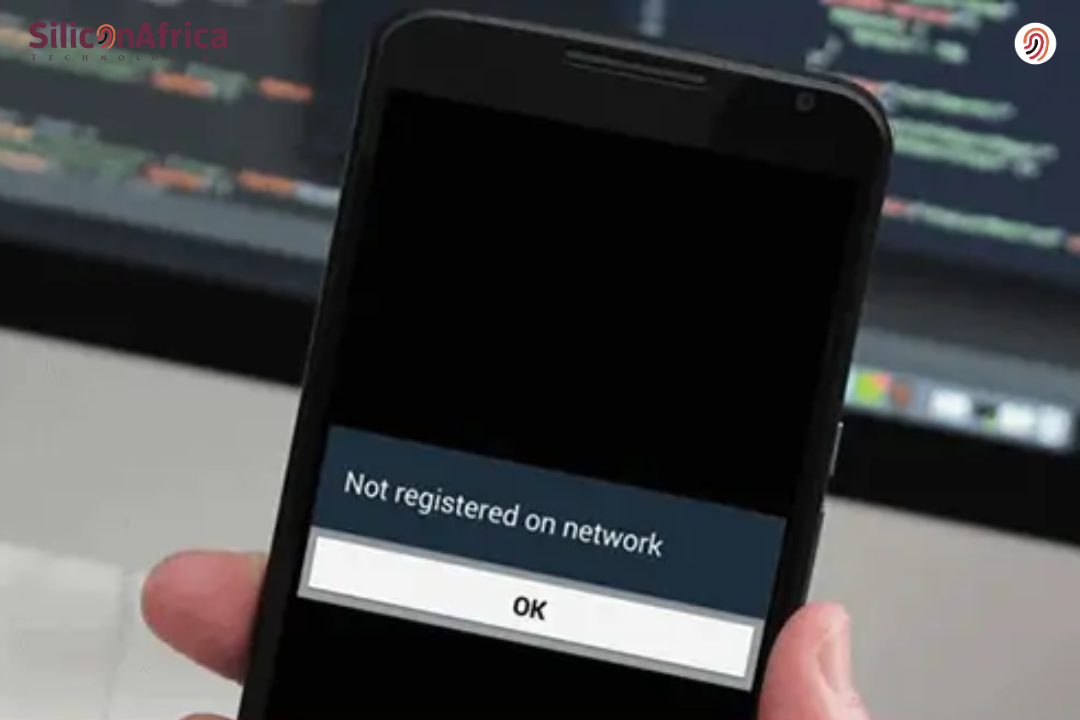
Not registered on network — perhaps the most annoying message when you urgently need to make a call or send a quick text. So, you stand there looking at your phone and wonder what happened. Maybe it’s your SIM card acting up, or it’s your Android phone that has suddenly decided to misbehave.
Whichever the case, it’s quite frustrating. I have actually been there too-that one frustrating moment when your phone keeps showing SIM not registered on network, and you are trying everything from restarting to switching SIM slots; nothing changes.
The good news is that this problem isn’t as serious as it appears. Whether you’re using a Samsung, Tecno, Infinix, or any other Android phone, you can actually fix this yourself in a few simple steps.
In this tutorial, I will be showing you exactly how to fix ‘not registered on network’ on Android, from checking your SIM settings to adjusting your network mode and even updating your software.
By the time you’re done reading, you will know how to fix not registered on network issues like a pro, whatever may have caused it. So, let’s get your phone back online and save you from that “not registered network” headache once and for all.
What does “Not Registered on Network” Mean?
When your phone shows “Not Registered on Network,” it simply means your SIM card isn’t connecting properly to your service provider. In other words, your phone can’t talk to your network. This usually happens when the SIM is loose, expired, damaged, or when there’s a poor signal in your area. Sometimes, it’s just a minor software glitch on your Android device.
Think of your SIM as your phone’s ID card. It’s what allows your device to introduce itself to the network, be it MTN, Airtel, Glo, 9mobile, etc., and get access. Once that communication is blocked or interrupted, your phone throws up the “Not Registered on Network” error.
So, what does that even mean? It’s essentially your phone saying, “Hey, I can’t reach my network.” That happens if your SIM isn’t recognized, your carrier hasn’t authorized your connection, or the radio signal on your phone is just off. In other words, your device can’t establish a stable link with your provider’s network, which is why you can’t make calls, send texts, or use mobile data until the issue is fixed.
Read Also – How to Open APK File | Mac, Android
Common Causes of the “Not Registered on Network” Error
First, let’s understand what usually causes this problem before jumping into the solutions. Knowing the cause makes fixing it easier.
- SIM Card Issues: This error is due to a loosely fitted SIM card, damage to the SIM, or the SIM not being active.
- Incorrect configuration: Incorrectly configured network settings or obsolete settings can reduce your phone’s capabilities to connect to the network.
- Software Glitches: Bugs or glitches in your phone’s operating system can cause network connectivity problems.
- Carrier Restrictions: Sometimes, network service providers may block some devices or IC cards for several reasons that could include policy or technical grounds.
- Disturbances: Disturbances in signals could arise due to physical interference, where people are isolated from strong network access points.
- Outdated Phone Software: Failure to update your device’s software may result in compatibility problems with network providers, hence giving you errors.
- Airplane Mode Errors: Sometimes, even after turning off airplane mode, the phone may not reconnect to the network correctly.
- Network Provider Outages: Temporary service outages from your carrier may show this error and go away once the problem is solved at their end.
Also Read – How to Find My Airpods | Best Ways to Find Your Airpods
A Step-by-Step Guide on How to Fix “Not Registered on Network”
Now that you know what causes it, let’s go through the simple steps you can take to fix it. Follow them one after the other.
1. Restart Phone
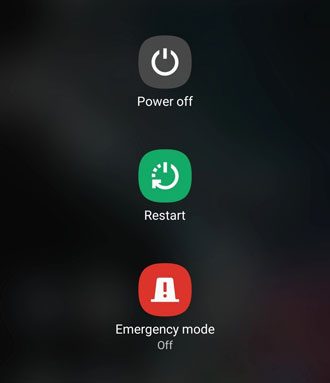
The easiest way to fix this is by restarting your phone. Rebooting your phone will clear temporary system errors and network connection problems that might be preventing it from connecting with your carrier’s network. Long-press the “power” button on your phone, select “Restart”, and once the phone has restarted, this usually solves such temporary network registration problems.
2. Switch Airplane Mode On and Off
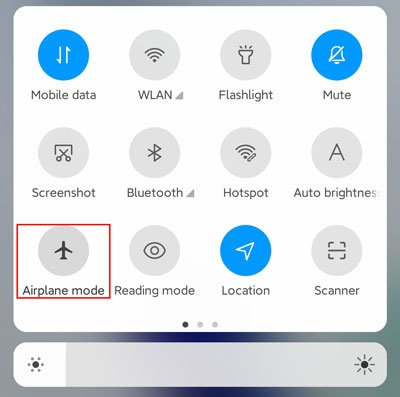
To fix the “not registered on network” error on Android, enabling airplane mode may be the quickest and easiest approach. It can sever the connection of your phone with all kinds of wireless networks. Just pull down the notification panel, tap on the “Airplane mode” icon, wait a few seconds, and then tap again to disable airplane mode.
3. Select Network Manually
Selecting a network manually is one of the excellent solutions for the “not registered on network” messages on your device. This method makes it possible to select which network is available directly from the phone’s settings without depending on automatic selection. To do so, follow these steps:
- Open the Settings app on your Android device.
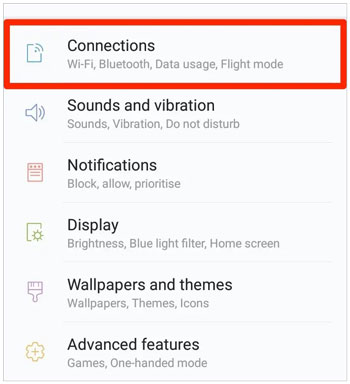
- Underneath, click on either “Connections” or “Network & Internet”, depending on how your device is set up.
- Tap on “Mobile networks” or “SIM & network” to open a menu with your SIM card settings.
- Choose “Network operators” or anything similar.
- Your device will search for available networks. A list of the available networks will then be displayed once the search is complete.
- From the shown list, select your desired network. If you don’t know, then you can choose the “Choose automatically” option, which lets your device pick up the network with the best signal.
- Wait until your device connects to the network you chose. Once connected, the “not registered on network” issue should be solved.
Read Also – What are Network Devices | Types and Functions
4. Change Preferred Network Type
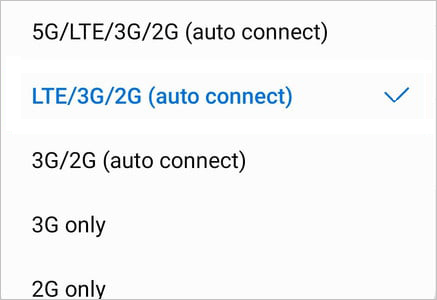
Try changing the preferred network type in your phone. For instance, you can shift from 5G to 4G or from automatic mode to manually selecting the network. It may help you solve the issue. You can commonly change the preferred network type on your phone by:
- Open your phone settings.
- In the settings menu, find the option for setting up networks, which may go under the names “Network”, “Connections”, or “Mobile Networks”.
- In the settings for the network, find the option titled “Preferred Network Type”, “Network Mode”, or something similar.
- Choose the kind of network to use: Switch from 5G to 4G, or from Auto mode to Manual mode.
5. Update Android Phone
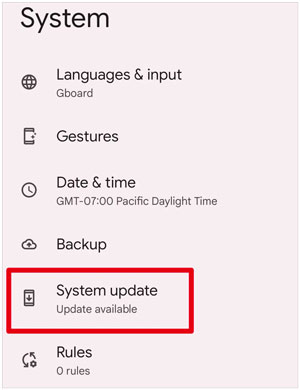
It is paramount to note that an update to your Android is absolutely critical in fixing the “Not Registered on Network” issue. Software updates generally come with improved performance of the system and bug fixes, which can solve network connection issues. For this, you can go to SETTINGS and follow these steps:
- Go to “Settings”.
- Scroll down and tap on “About Phone” or “System update”. If available, download and install updates.
6. Reinsert the SIM Card
To resolve the “not registered on network” error in Android, reinsertion of the SIM card may fix the identification problem. Take out your SIM card and check if it has any damage. Place the card in the tray correctly, making sure it is inserted in the right position, with the metal pins aligned well.

7. Use a different SIM card
If the problem isn’t solved by reinsertion, try replacing it with another card to eliminate problems that could be related to the SIM itself.
Also Read – My Network is Slow: How to Boost Your Network in Nigeria
8. APN Settings Update
One effective way to solve the “Not Registered on Network” problem is by updating the APN settings. An APN, or Access Point Name, is used by mobile network service providers to connect your Android phone to the internet. If the settings are wrong, your phone will not be able to register on the network. Here is how you do it:
- Open the Settings app on your Android device. Scroll down and tap on “Network & internet” or “Connections”, depending on your Android version.
- Tap “Mobile network” or “Cellular networks”. You should see an option for “Access Point Names” or “APN”. Tap on it to access the APN settings.
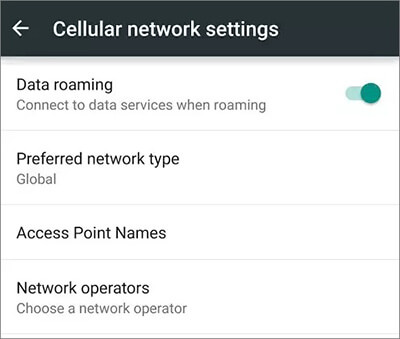
- If several APN configurations appear in the list, choose the one related to your SIM card/carrier. Tap on the APN you would like to edit.
- In most cases, depending on the carrier, you may need to enter specific settings such as APN, username, password, MMSC, MMS proxy, MMS port, MCC, and MNC, among others. These settings can usually be obtained from your carrier’s website or by calling their customer service.
- Click the “Save” or “Apply” button after you have typed the APN settings correctly.
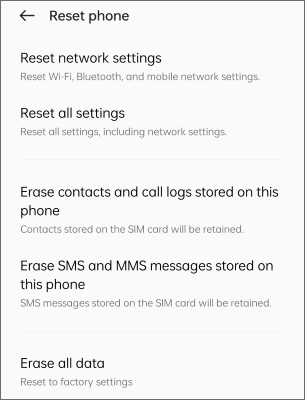
9. Restore Network Default Settings
If everything described above does not work, you can try a network setting reset. This will erase all network information on your phone, including saved Wi-Fi networks, paired Bluetooth devices, and mobile data settings. To reset the network settings on an Android device, you can follow these general steps:
- Launch the “Settings” app on your Android device.
- Scroll down and tap on “System” or “System & updates,” depending on your device.
- Look for and tap on “Reset” or “Reset options”.
- Choose the option to “Reset Wi-Fi, mobile & Bluetooth” or anything similar that suggests a network setting reset. You may be prompted to input your device’s PIN, pattern, or password for verification.
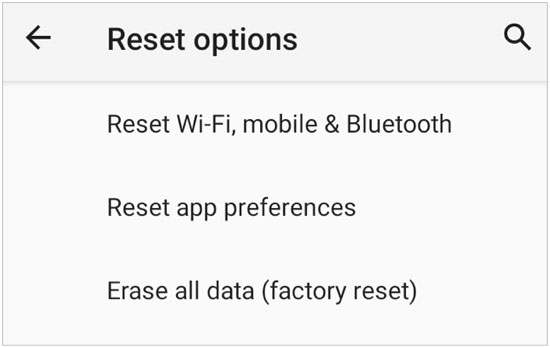
- Tap on “Reset settings” or “Reset network settings” to confirm the action. It will reboot your device and then restore the network settings to their default settings.
10. Use a Professional Tool
If the “not registered on network” message is caused by issues within the phone’s operating system, then you can try professional repair software for Android OS. As long as you follow the on-screen instructions, you can repair your Android device step by step without effort.
Read Also – Nigerian Phone Numbers and their Corresponding Networks 2025
How to Avoid the “Not Registered on Network” Problem in the Future
While the occasional “Not Registered on Network” error is often easily fixed with some light troubleshooting, frequent occurrences of this can really halt your daily activities. Preventive measures include the following to avoid this situation in the future and to ensure a more reliable network connection:
- Regular Software Updates: Keep your Phone up to date. Manufacturers often release updates that improve network compatibility and fix known bugs. Go to your phone settings from time to time under the software update section to regularly check for and install these updates.
- Keep Your SIM Card in Good Order: Many network issues can be resolved by simply keeping your SIM card in good order. Be sure to keep your SIM card clean and well-seated. If your SIM card is over five years old or in bad condition, it’s a good idea to request a replacement from your carrier.
- Choose Automatic Network Selection: Although selecting the network manually may help temporarily, it is always better to let your phone do the work for you by default. Instead, allow your phone to automatically select a network. This way, it can find and connect to the best one out there to avoid the error.
Frequently Asked Questions
That’s usually because your SIM isn’t connecting to your carrier. It could be due to poor network coverage, some software bugs, or a faulty SIM card.
Yes, you can. Most times, restarting your phone, reinserting the SIM, or resetting network settings solves it.
Then your phone’s software or hardware may be the problem. Try updating, resetting network settings, or paying a visit to a repair shop.
Conclusion
It could be quite frustrating to see ‘Not Registered on Network’ pop up on your Android, especially when you really need your phone urgently. However, the solution is usually simple and often requires checking your SIM, refreshing the network, or tweaking a couple of settings.
By following these steps, you’ll know exactly how to fix the issue of ‘not registered on network’ on Android without panicking. The next time your phone suddenly says ‘SIM not registered on network’, don’t worry, since you now have the knowledge to fix it like a pro.
In the end, all that has to happen is that your phone and the SIM need to “talk” to each other. Once they do, the not registered on network message is history, and you are online in no time.
If you find this piece useful, kindly leave a comment and follow for more updates
Facebook at Silicon Africa
Instagram at Siliconafricatech
Twitter at @siliconafritech.
References
- How to Fix ‘Phone Not Registered On Network’ Error
- Not Registered on Network: Effective Fixes and Tips
Recommendations
- How to Fix Google Sorry Automated Queries | Full Guide
- How to Fix “I Can’t Login My Telegram Account” Problem in Nigeria
- How to Fix “I Can’t Login My WhatsApp Account” Problem in Nigeria
- How to Fix “I Can’t Login My Kuda Account” Problem in Nigeria
- How to Fix “I Can’t Login My Opay Account” Problem in Nigeria